



Roles and access
Admin vs viewer roles, invite-only access, and what each role can do across Atlas.
Invite-only workspace
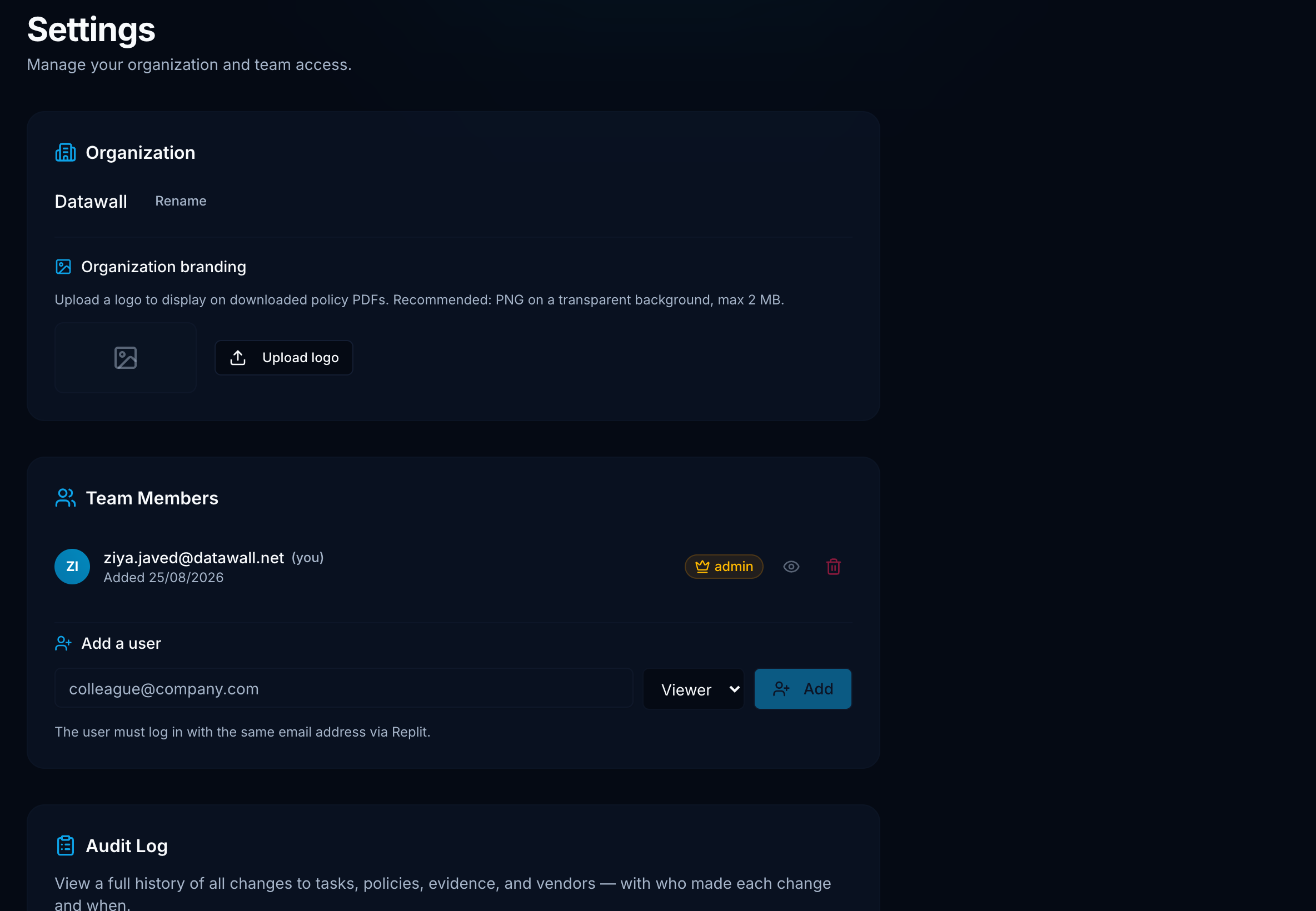
Atlas does not offer public self-signup. Every user must be added by an organization admin in Settings → Team Members before they can sign in.
Full write access across the organization.
- Complete onboarding and submit assessments
- Create and edit tasks, risks, policies, vendors, and evidence
- Connect, sync, and disconnect Integrations
- Invite and remove teammates; change roles
- Rename the organization
- View Audit Log
Read-only across every page.
- See dashboard score, roadmap, inventory, Security 360, frameworks, and AI Governance
- Open Ask vCISO and Executive View PDFs
- Cannot connect integrations, edit records, or invite users
- Write buttons and admin actions are hidden or disabled
Who becomes admin
The first person to sign in to a new Atlas instance becomes the organization admin. That person should invite the rest of the team and assign additional admins if needed.
Add emails before login
In Settings → Team Members, add each teammate's work email and choose Admin or Viewer.
Same email at sign-in
Users must sign in with the exact email that was invited. A mismatch shows Account not set up yet.
Promote when ready
Promote trusted operators to Admin when they need to manage integrations or evidence.
Page-level permissions
| Area | Admin | Viewer |
|---|---|---|
| Dashboard, Security 360, Executive View | Read + write context | Read |
| Assessment submit | Yes | No |
| Roadmap / Tasks | Edit status, owners, evidence | Read |
| Inventory | Edit manual rows; sync via integrations | Read |
| Frameworks & Policies | Edit controls, policies, evidence | Read |
| AI Governance | Change approval status | Read |
| Risk Register & TPRM | Create/edit risks and vendors | Read |
| Integrations | Connect, sync, disconnect | Status only |
| Settings & Audit Log | Full | Settings read; audit log admin-only |
Common access issues
Account not set up yet
Email not invited or wrong identity provider account.
Invite a teammate
Step-by-step for Settings → Team Members.
Access is scoped to one organization. There are no per-project or per-team workspaces inside Atlas today.